Breaking News
Showing posts with label Google. Show all posts

Add Google +1 Button To WordPress And Blogger


Google has officially launched +1 button before an hour. So here is our little guide on how to add the official Google +1 button on your WordPress and Blogger blog.
google plus for wordpress and blogger

For Blogger

Go to Edit HTML and search for <head>. Soon after that place the below code
<script type="text/javascript" src="http://apis.google.com/js/plusone.js">
</script>
Now the next step is to place the Google +1 in the post area. To do that search for <div class="post-header-line-1"/> or <data:post.body/> and place the below code immediately after it
<div style='float:right; margin-right:10px;'>
<g:plusone expr:href='data:post.url'></g:plusone>
</div>
Google offers four different types of button from which you can select any one of those. For more information kindly check the post footer

For WordPress

WordPress users go to header.php search for </head> and immediately before that place the following code
<script type="text/javascript" src="http://apis.google.com/js/plusone.js"></script>
Next up is placing the button where you actually want on your blog, so go to single.php and place the following code where you want it to display
<g:plusone href="<?php the_permalink(); ?>"></g:plusone>

Options

As I said, Google offers 4 different types of button
size="small"  - To display small size +1 button of 15px
size="medium" - To display medium size +1 button of 20px
size="large" - To display large size +1 button of 60px
For an example if you want large button, check this example
<g:plusone size="tall"></g:plusone>
 
For more details check out Google +1 resource from Google
Read more ...

Add|Blogger Releases Virtual Tip Jar Feature

Here is a good news to all bloggers around the world who are using BloggerTM as their weblogging platform. Recently, Blogger launched a new feature, Support My Blog button which allows your blog readers to contribute some bucks to you using Google Checkout.


This feature may excite many of you out there because at the same time you blog, you can make some little
side income. It is quite easy to implement this feature into your blog and it takes only a few minutes of your time. Follow these easy steps.

1. Sign up for Google Checkout Merchant Account at checkout.google.com/sell
2. In the Settings tab, enable the HTML API by clicking the integration link and unchecking the “My company will only post digitally signed carts” checkbox. Don’t forget to copy the Merchant Id for use in step 4.
3. Now go to Blogger Dashboard > Design > Page Elements. Click on “Add a Gadget” link and add the “Support My Blog” gadget from the gadgets list.
4. Customize your Support button settings. The Checkout Merchant Id is the one you copied down in step two.
5. Click Save and you’ve successfully added it to your blog.

For your information, the readers who click the Support button will be directed to Google Checkout to complete the transaction. Have a look at the support button in action at http://bloggercheckout.blogspot.com/. And don’t forget to share your opinion about this new Blogger feature with us via comments!
Read more ...

Add Google Talk Chatback Badges in Blogger

 Add Google Talk Chatback Badges in Blogger and Stay Connected with Readers.

Add Google Talk Chatback Badges in Blogger and Stay Connected with your Blog Readers. A Google Talk chatback badge will let visitors to your web page chat with you. They'll be able to chat with you whenever you're signed in to Google Talk as yourgmailid@gmail.com.

Google Chatback badge
A Google Talk chatback badge allows others to chat with you even if they haven't signed up for Google Talk on their Google Account or if they don't have a Google Account. You can put the badge in your blog or website, and people who visit those pages can chat with you. The badge will display your online status (whether you're available to chat or not) and, optionally, your status message.


To use this badge, copy and paste the HTML code below into your web page. If the site that hosts your web page does not support direct HTML editing or embedded frames then click 'Edit' to select a style of badge that does not use frames. If you want to include your badge in an email message, you should use the 'Hyperlink only' or 'Url only' styles.

Add chat Gadget in blogger

Note: You need to be a Google Talk user to create a badge, and you'll need to be online and available (with a green ball next to your name) in Google Talk to enable people to chat with you.

Steps to Add Google Talk Chatback Badges in Blogger

#Step 1. Go to http://www.google.com/talk/service/badge/New and fill the necessary detail as described above, like Nick name, Badge style and Title of the badge.

Update Chat Widget

Now look for JavaScript code generated at the end of the page. Copy the JavScript code.

#Step 2. Log in to your Blogger Dashboard and Navigate to Design> Page Element.

Design-PageElement

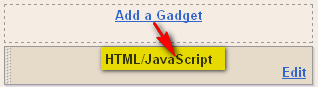
#Step 3. Add a Gadget as HTML/JavaScript and Paste the Code we have copied in #step 2.

Add A Gadget as HTML JavaScript

#Step 4. Save your Template and Done!. Now Whenever your blog reader will open chat session you will have the chat box pop up visible in your Gmail in-box page (refer below sample screen shot).

Guest Chat box

Enjoy! and chat with your blog readers. If you need any help please Leave a response.
Read more ...

Add Google +1 Button to Websites

google-1-plus-button
The Google +1 button has been announced yesterday. As it can affect the way your website appear on search results pages, it really matters to webmasters and SEO.
The +1 button is now available on Google Labs and you can try it here. After joining this experiment, you can see a +1 button and recommendations on the search results pages from your contacts. At this point, these contacts come from Google contacts only, Google hasn’t be able to get data from other social networks like Facebook or Twitter.
 
+1 is a Google idea to socialize its search results as they think recommendations from friends can help users find results quickly and it is more relevant too.
The +1 button is not only available on search result pages, Google said the version for websites will get official in the next few months. This button can help readers recommend your content on Google search easier without leaving your site. To get notified when the +1
 button for websites is available, you can sign up for email updates at +1 webmaster site.

This one has become the new signal that Google uses to determine a page’s relevance and ranking. What do you think about it?
Read more ...
Designed By GP